
Arcadier allows marketplace admins to create visually engaging homepages by adding video sliders using .mp4 links. Follow the steps below to set up your video slider.
Step 1: Get Your Video Link
You can source videos from free stock video sites like Mixkit, Coverr, Pexels etc. and look for a video.
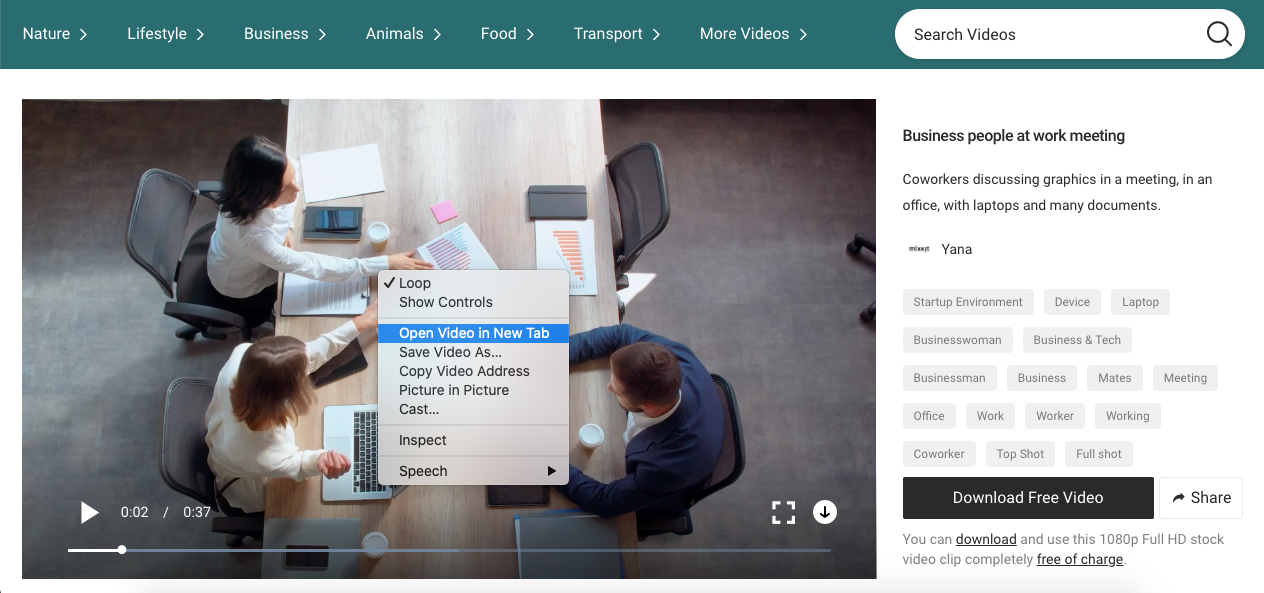
1. Find a video you like.
2. Right-click on the video and select “Open Video in New Tab.”
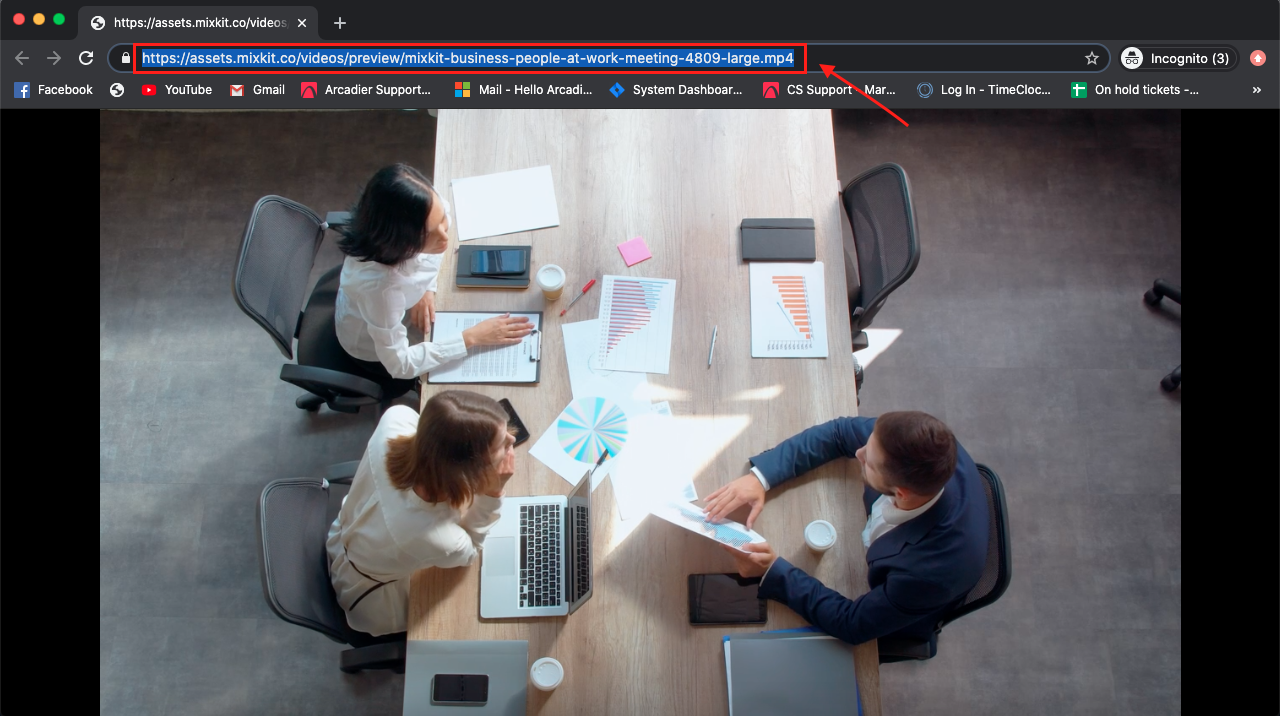
3. Copy the .mp4 link from the new tab.
Step 2: Add the Video to Your Homepage
- Log in to your Admin Portal.
- Navigate to Design > Page Layout Editor
- Click Edit (top-right corner of the page) from the Hero Panel.
4. Paste the MP4 Video Link into the designated field.
Step 3: Add More Sliders (Optional)
- Click Add New Slider to include additional videos or images.
- You can add unlimited sliders, but we recommend a maximum of 4 sliders for best performance.
Pro Tip
Image sliders are a great way to:
- Showcase advertisements.
- Monetize your homepage by offering ad space to sellers or third-party advertisers.
Using Your Own Video
If you want to use your own footage:
- Upload your video to a hosting site that provides a public .mp4 link.
- Follow the same steps above.
Related Feature
You can also allow merchants to add videos to their item listings.
👉 Read this article to learn how.
Best Practice Notes Applied:
- Clear headings and numbered steps.
- Screenshots referenced for visual guidance.
- Added tips and recommendations for performance and monetization.
- Linked related content for extended learning.